Run OKR check-ins, alerts, and digests directly in Microsoft Teams.
Six built-in notifications that keep your goals visible where your team already works. No new tab to keep open. No tool fatigue. Just OKRs that show up where the conversation already happens.
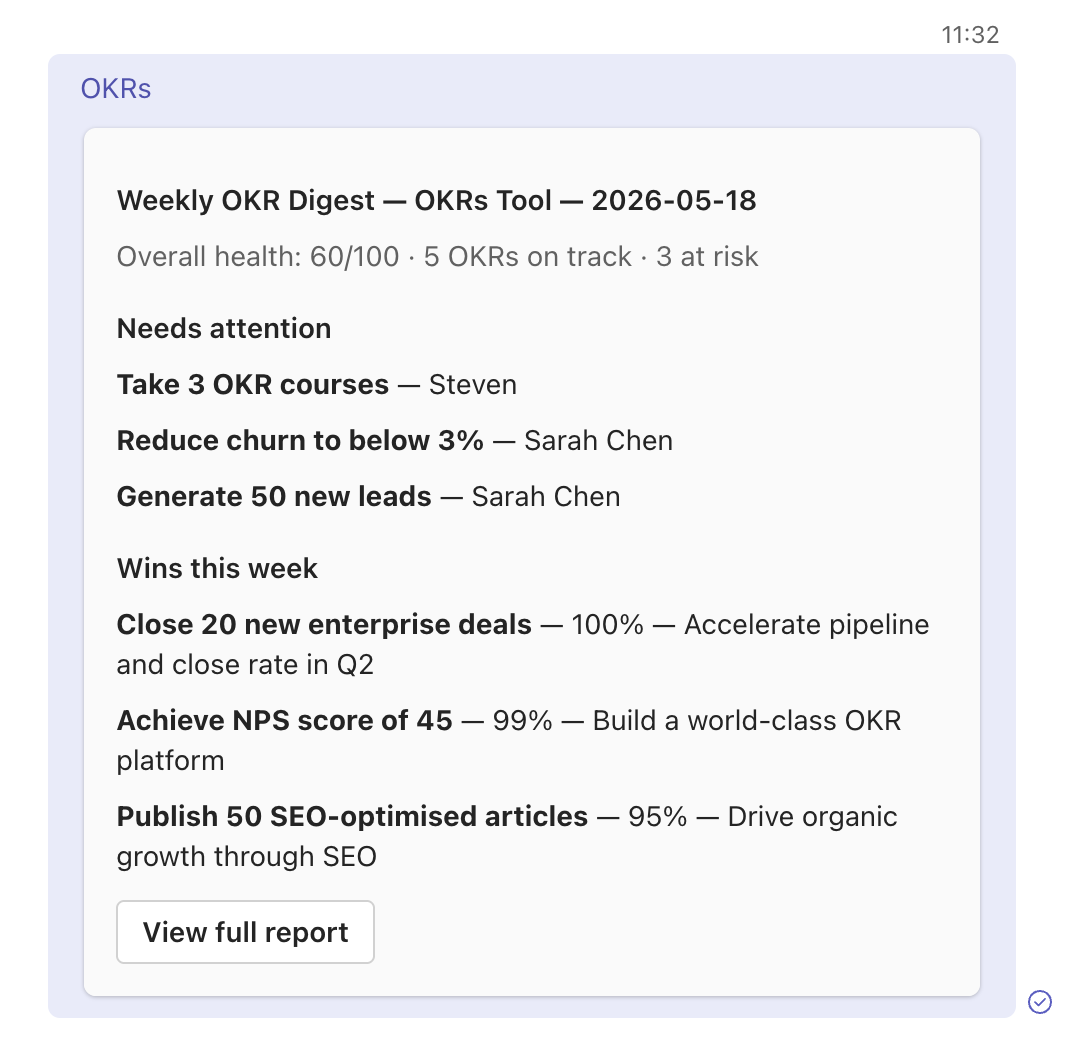
OKRs that show up where your team already works.
Six automatic notifications, posted to the Teams channels you choose, formatted as Adaptive Cards with action buttons.
Most OKR rollouts fail at the visibility layer. The platform is fine, the goals are clear — but nobody opens the OKR tool, so nobody knows where things stand. Updates trickle in late. Status meetings turn into status archaeology.
The Microsoft Teams integration solves that by meeting your team where they already are. Check-in notifications, at-risk alerts, milestone celebrations, and weekly digests all post directly to your chosen Teams channel — formatted as rich Adaptive Cards with one-click actions back to OKRs Tool.
Six events. Six automatic notifications.
Every notification is configurable per channel. Turn on what helps; mute what doesn't.
KR check-in notifications
Whenever a Key Result gets a fresh check-in, the channel is notified with the previous value, new value, and progress delta. Visibility without the standup.
At-risk & off-track alerts
When an OKR's health drops to At Risk or Off Track, an alert fires automatically. Your team can intervene early — not at quarter-end retro.
Check-in reminders
Three times a week, a reminder posts to your channel asking owners to update their KRs. Routine over willpower — the rhythm makes check-ins happen.
Milestone celebrations
When a KR is achieved, a celebration message posts to the channel — owner credited, OKR linked. Wins should be public. This makes them so.
Weekly OKR digest
A complete team summary every Monday: OKR status, at-risk items, last week's wins, KRs that need attention. The single message that replaces three status meetings.
Adaptive Cards with actions
Every notification is sent as a Microsoft Adaptive Card — formatted layout, progress bars, and one-click action buttons that jump straight to the relevant OKR in OKRs Tool.
Why Adaptive Cards matter.
A plain text message in Teams is easy to ignore. Adaptive Cards aren't. Every notification from OKRs Tool uses Microsoft's native rich-formatting standard, which means:
- Visual hierarchy — owner, status, progress, and call-to-action are visually distinct, not buried in a paragraph.
- Action buttons inside the card — "Add my check-in" or "Open OKR" link straight back into OKRs Tool. One tap, no copy-pasting URLs.
- Native rendering on every Teams client — desktop, mobile, web. Same card, same actions, same experience.
- No "yet another bot" — notifications come from OKRs Tool as a connector, not as a chatbot. Quieter, cleaner, less Teams clutter.
Set up in under five minutes.
The Microsoft Teams integration is configured directly inside OKRs Tool. Included on every paid plan, starting with Scale.
How to connect Microsoft Teams
If you already have an OKRs Tool account on any paid plan, sign in and follow the steps below. Not signed up yet? See plans or start your 14-day trial — Microsoft Teams is included from Scale up.
- Log in to your OKRs Tool account at
go.okrstool.com - Navigate to Settings → Integrations → Microsoft Teams
- Click Connect to Microsoft Teams and authorize OKRs Tool through your Microsoft Entra ID (Azure AD) account
- Select the Teams channel where notifications should be posted (you can configure multiple channels later)
- Choose which notifications to enable — check-ins, alerts, reminders, milestones, weekly digest — and save
What this isn't.
Worth being clear up front so expectations are right. This is a notifications integration, not a Teams app.
- Not a Teams chatbot. You don't @-mention OKRs Tool to ask questions. The integration posts notifications; it doesn't respond to messages.
- Not a Teams Tab or message extension. OKRs Tool isn't embedded inside Teams. The web app stays the primary place to manage OKRs; Teams is the visibility layer.
- Not a replacement for status meetings. The weekly digest reduces the need for them, but human judgment and conversation still matter — the integration informs, it doesn't decide.
- Not for personal DMs. All notifications post to channels, not individuals. OKRs are a team practice, and the integration reflects that.
Keep OKRs visible where your team already works.
The Microsoft Teams integration is included on every paid plan, starting with Scale — $129/month flat for the whole team, with every integration built in. Built for organizations where OKR adoption requires automation, not nudges.
See Scale planBuilt with the minimum permissions needed.
Authentication runs through Microsoft Entra ID (Azure AD) using OAuth 2.0 — the same security model your IT team already approves for Microsoft 365 apps.
Microsoft Graph permission scopes
The integration uses standard Microsoft Graph delegated and application permissions. We only request what's needed to post notifications — no read access to Teams chat history, files, or contacts.
ChannelMessage.Send— post Adaptive Cards to the channels you selectTeam.ReadBasic.All— read team and channel names so you can pick a channelUser.Read— read your basic profile to associate the connection with your OKRs Tool account
Data & privacy
We don't read messages from Teams. We don't store your team's chat content. The integration only sends data outward — OKR notifications posted to the channels you've authorized. Disconnect anytime from inside OKRs Tool or via your Microsoft 365 admin center.
Read our Privacy PolicyNeed help with the integration?
Email us directly. We respond within 2–4 hours during business hours — every email is personally answered by Steven, founder of OKRs Tool.
steven@okrstool.comMicrosoft, Microsoft Teams, Microsoft 365, Microsoft Entra ID, and Azure AD are trademarks of Microsoft Corporation. OKRs Tool is not affiliated with or endorsed by Microsoft.