Set up your team's first OKR cycle this afternoon. Run it without status meetings.
OKRs Tool walks you from a blank screen to a fully aligned team in one sitting — and keeps the cycle running every week without anyone chasing updates. Here's exactly how.
Setup, in four steps.
From the moment you sign up to the moment your team gets their invite emails. Sequenced, not improvised.
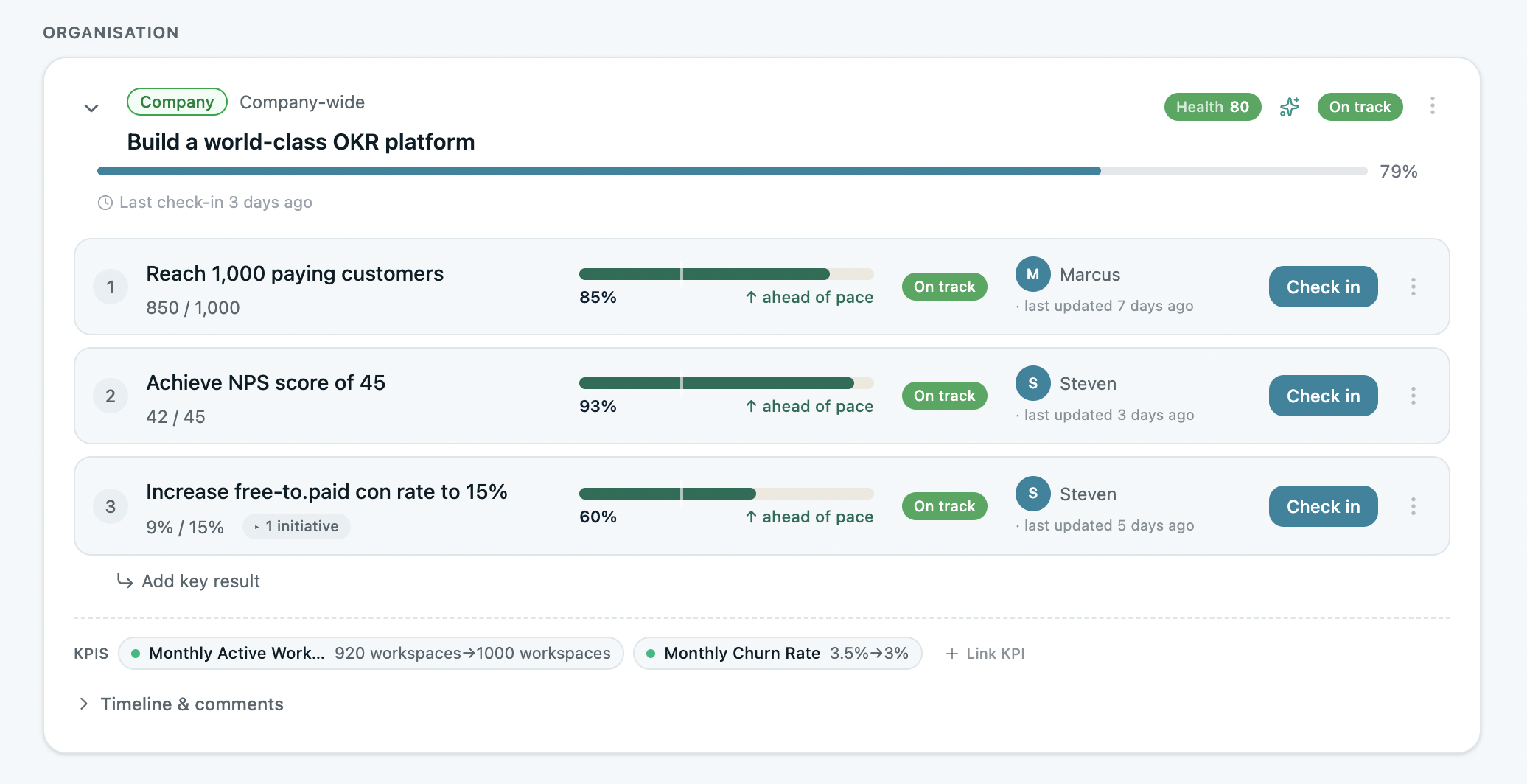
Set the company objective
Every OKR rollout starts in the same place — one company-level objective the whole org connects to. Set it first; everything else flows from here.
- Pick from a template or write your own
- Add 2–4 Key Results with clear targets
- Assign yourself or your CEO as owner
Build the team structure
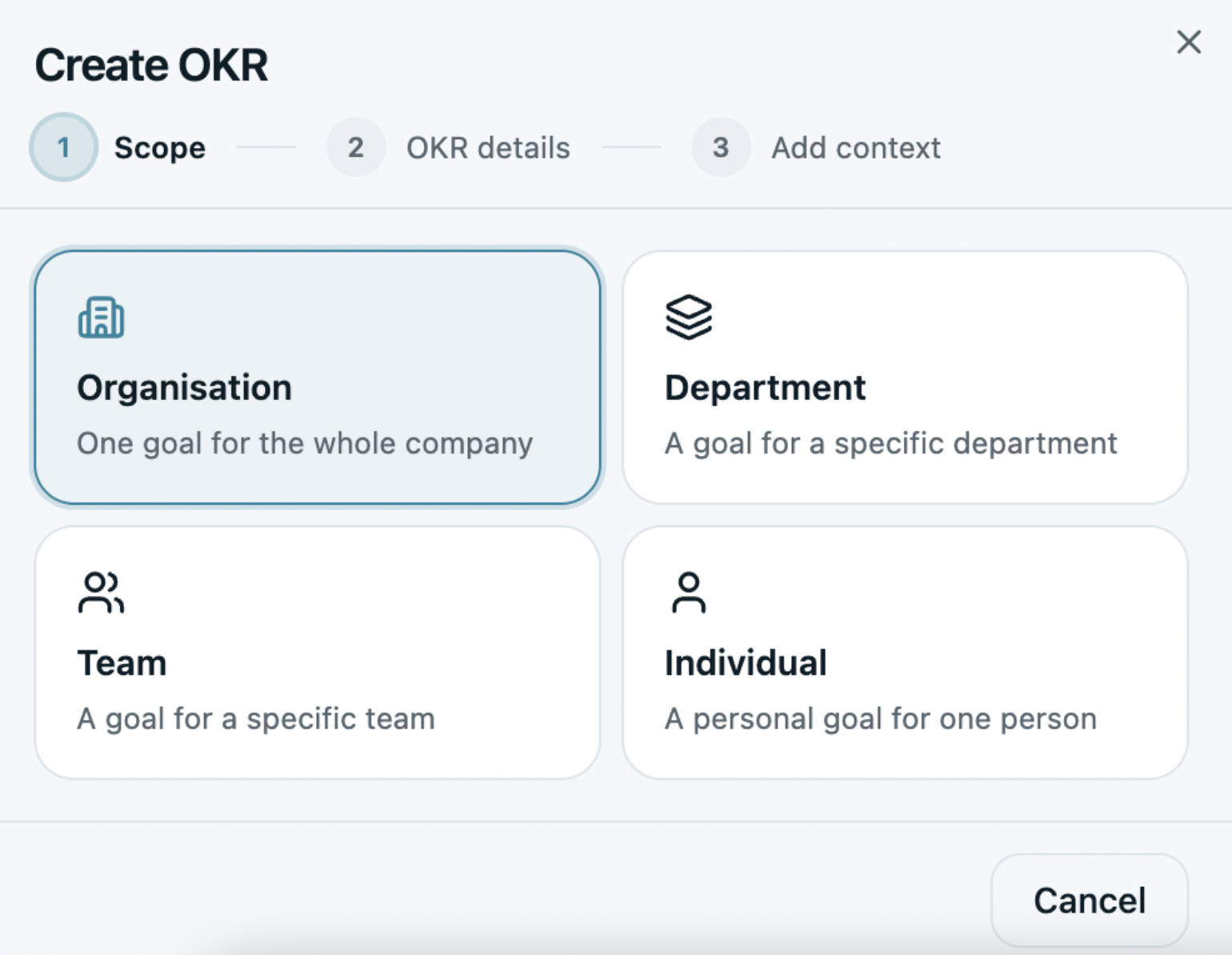
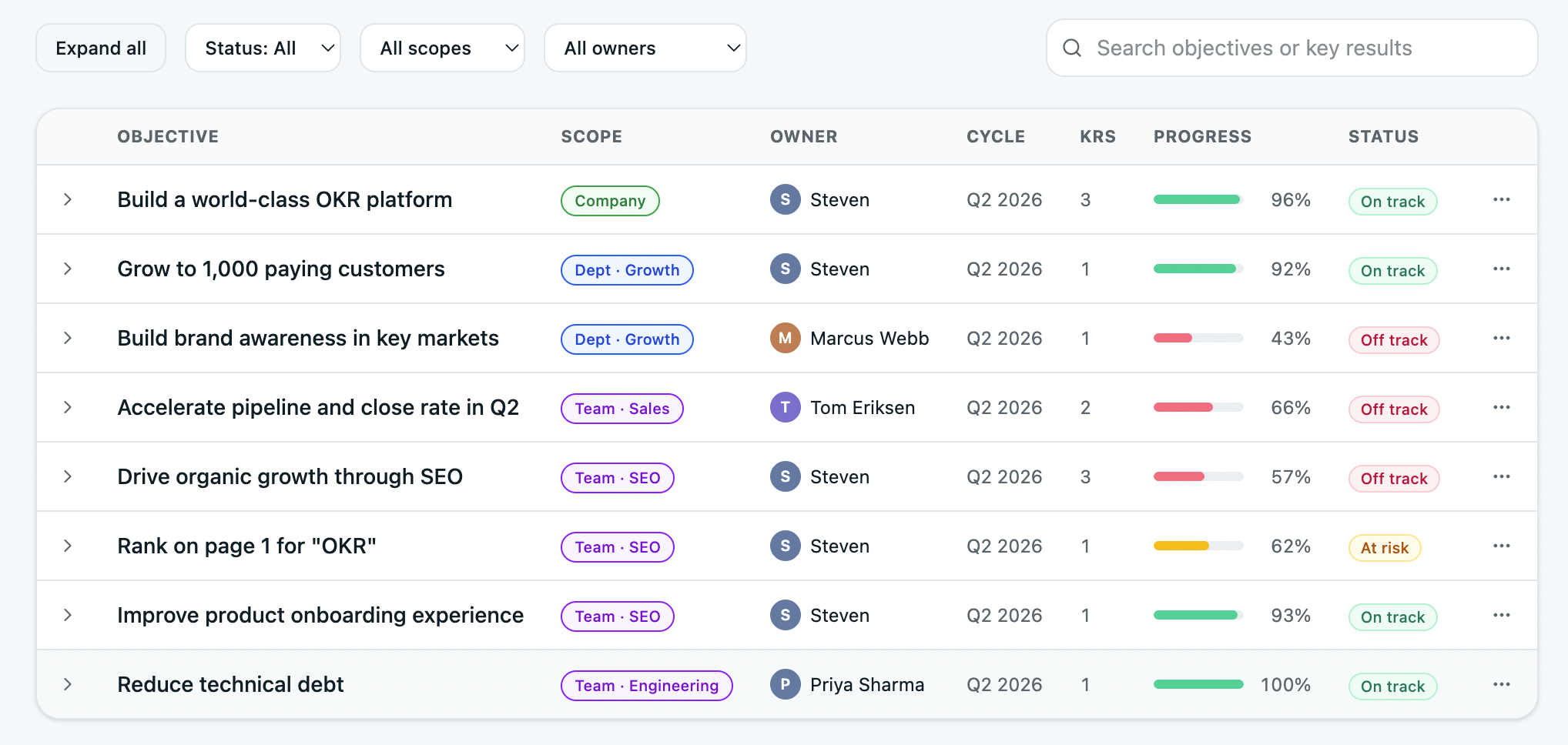
Add departments and teams, then connect each team's OKRs to the company objective. You go from a blank screen to a fully structured org in one sitting.
- Departments and teams in a hierarchy
- Cascade OKRs from company → department → team
- Visual Alignment Map updates as you go
Assign one owner per Key Result
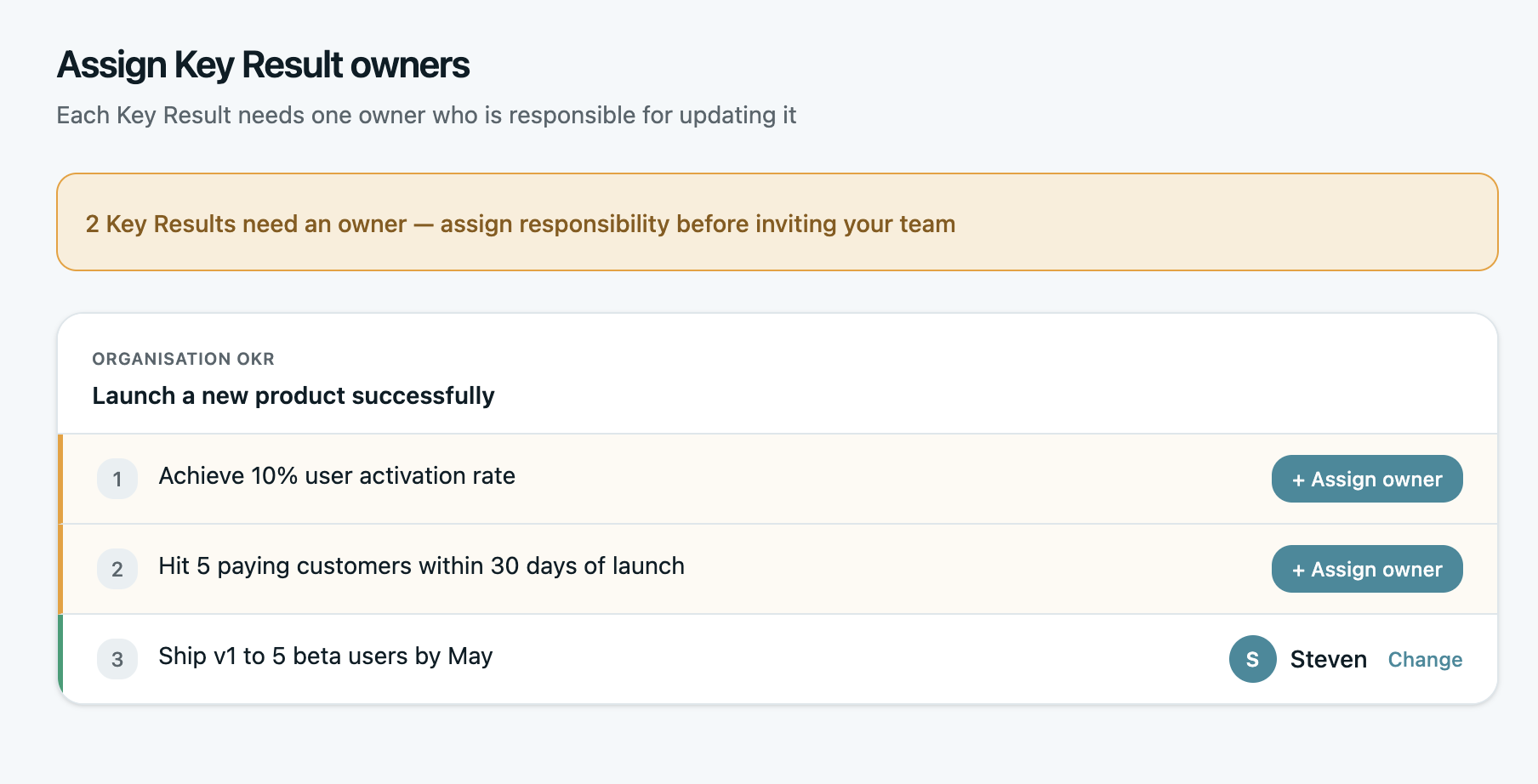
Every objective and key result gets one name attached. Not a team, not a department — one person who owns the result. That single decision is what turns OKRs from a planning exercise into something that actually drives execution.
- One owner per KR — accountability built in
- Owners get email nudges every Monday
- Reassign in seconds if the team changes
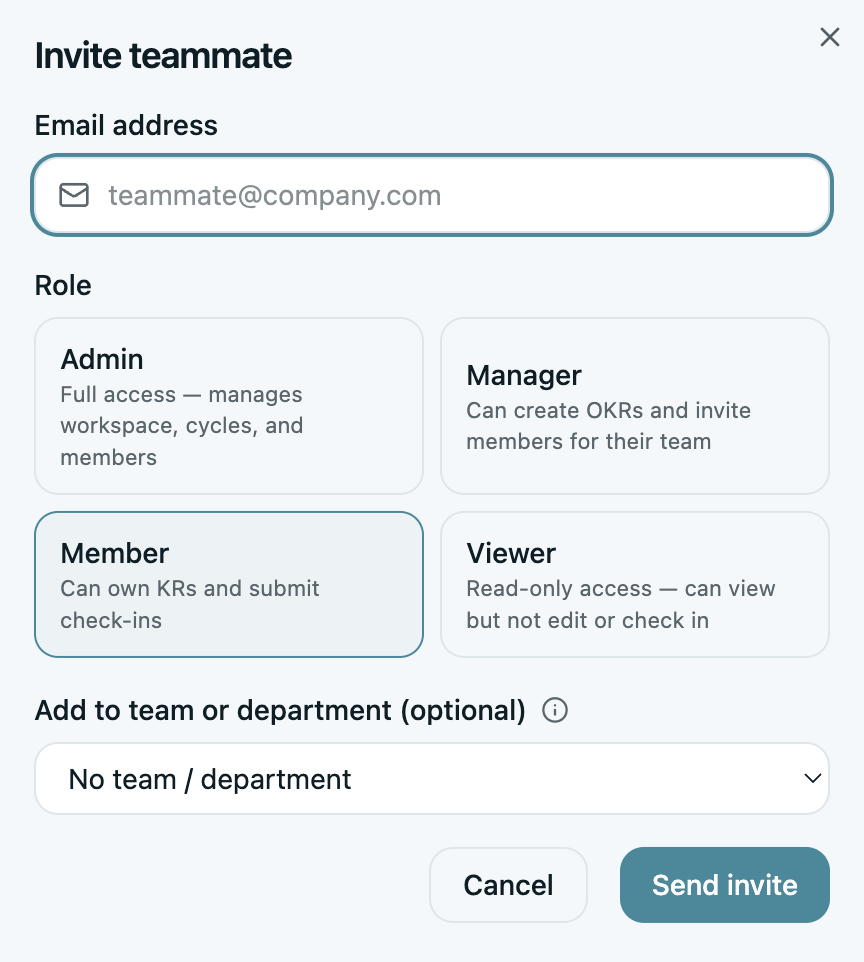
Invite the team
Send invites directly from the platform. Your team lands in a system that's already structured, connected, and ready to use from day one. No training session. No onboarding doc. They open it and they're ready.
- Bulk invite by email
- Google Sign-In supported on every plan
- Team members see exactly what's relevant to them

"OKRs Tool is simple and easy to use, and the support is outstanding. When we ran into a problem, they responded immediately and built a new feature within a week."
Monday morning, the system takes over.
No status meetings. No chasing. No "did everyone update their KRs?" Slack thread. The cycle just runs.
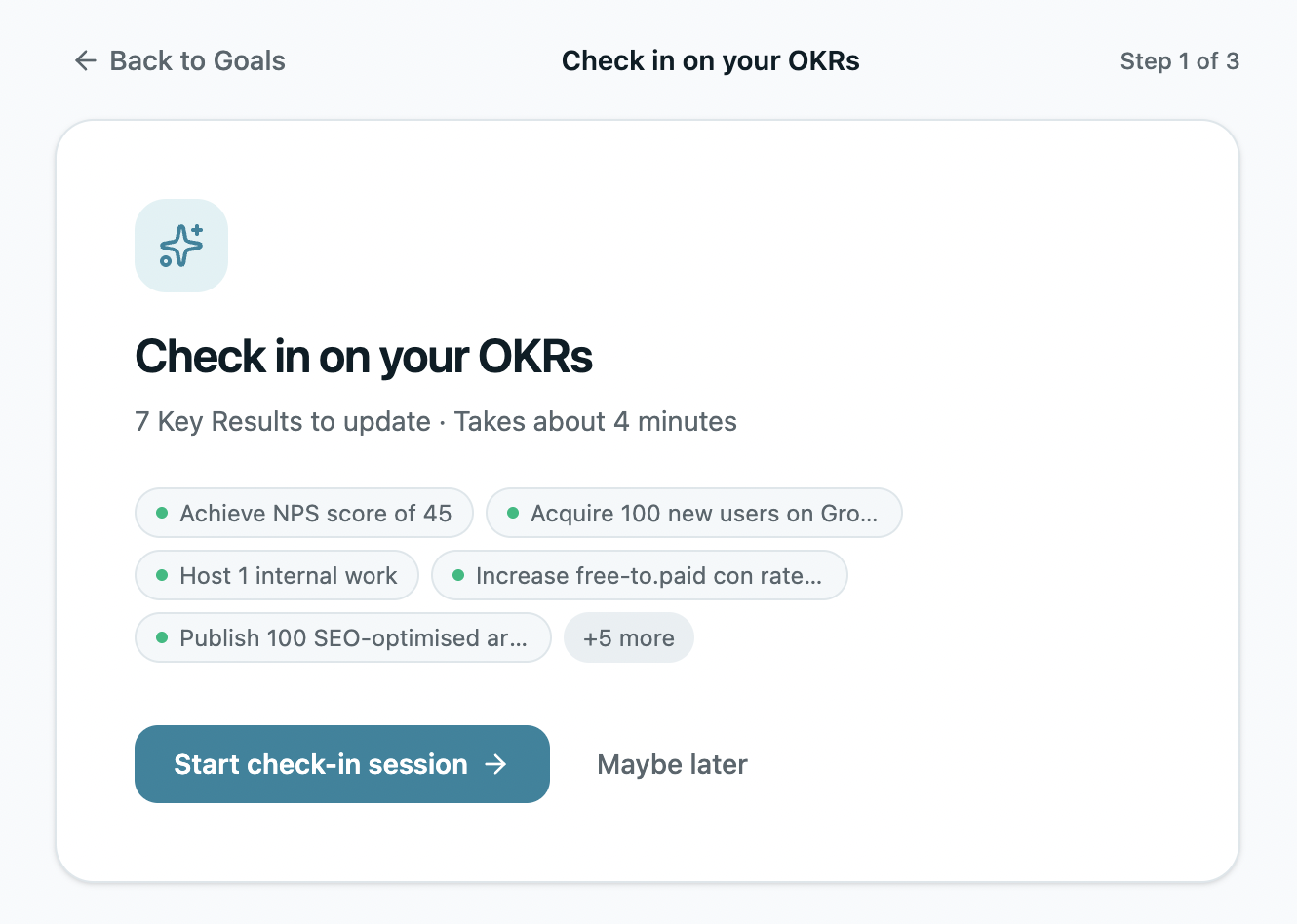
Every KR owner gets an email. They update in 30 seconds.
Each Monday, every KR owner gets a personalized email asking for a quick progress update. They click, type a comment, set a new value, hit save. Done.
- Personalized email per owner — not a team blast
- Update flow: comment + new value, takes 30 seconds
- Visible status: on track, at risk, behind
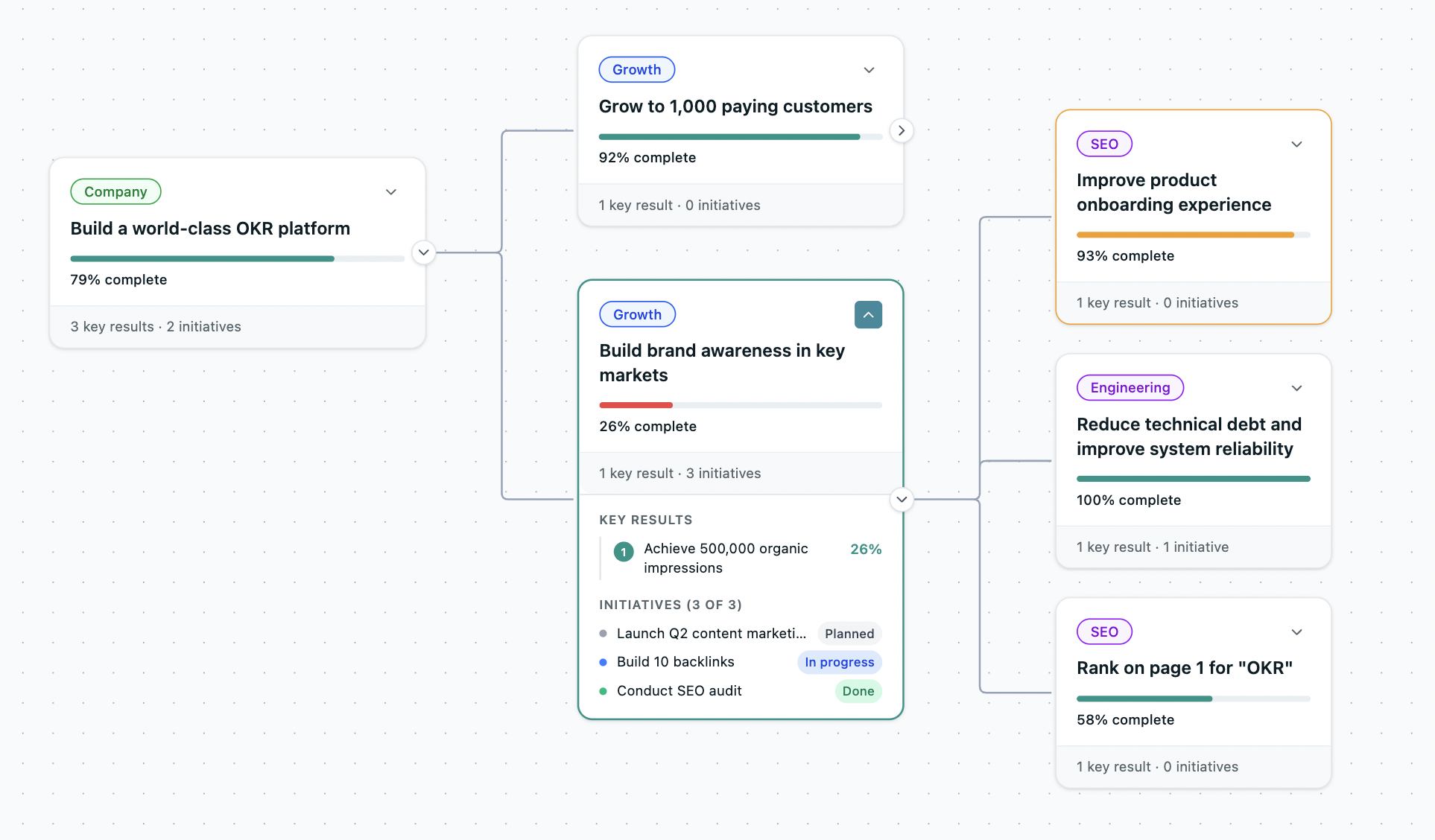
By mid-week, the Alignment Map shows you everything.
The Alignment Map is your real-time view of how every team's OKRs ladder up to the company objective. As people update through the week, it fills in. You see status without asking anyone for it.
- Every team and KR connected to the company objective
- Health colors update as KRs progress
- One view replaces 5 status meetings
The cycle runs itself. You stay focused on what matters.
Once the rhythm is set, OKRs Tool moves into the background. AI surfaces the risks before they become problems. KPIs track in parallel. You spend time on work, not on tracking work.
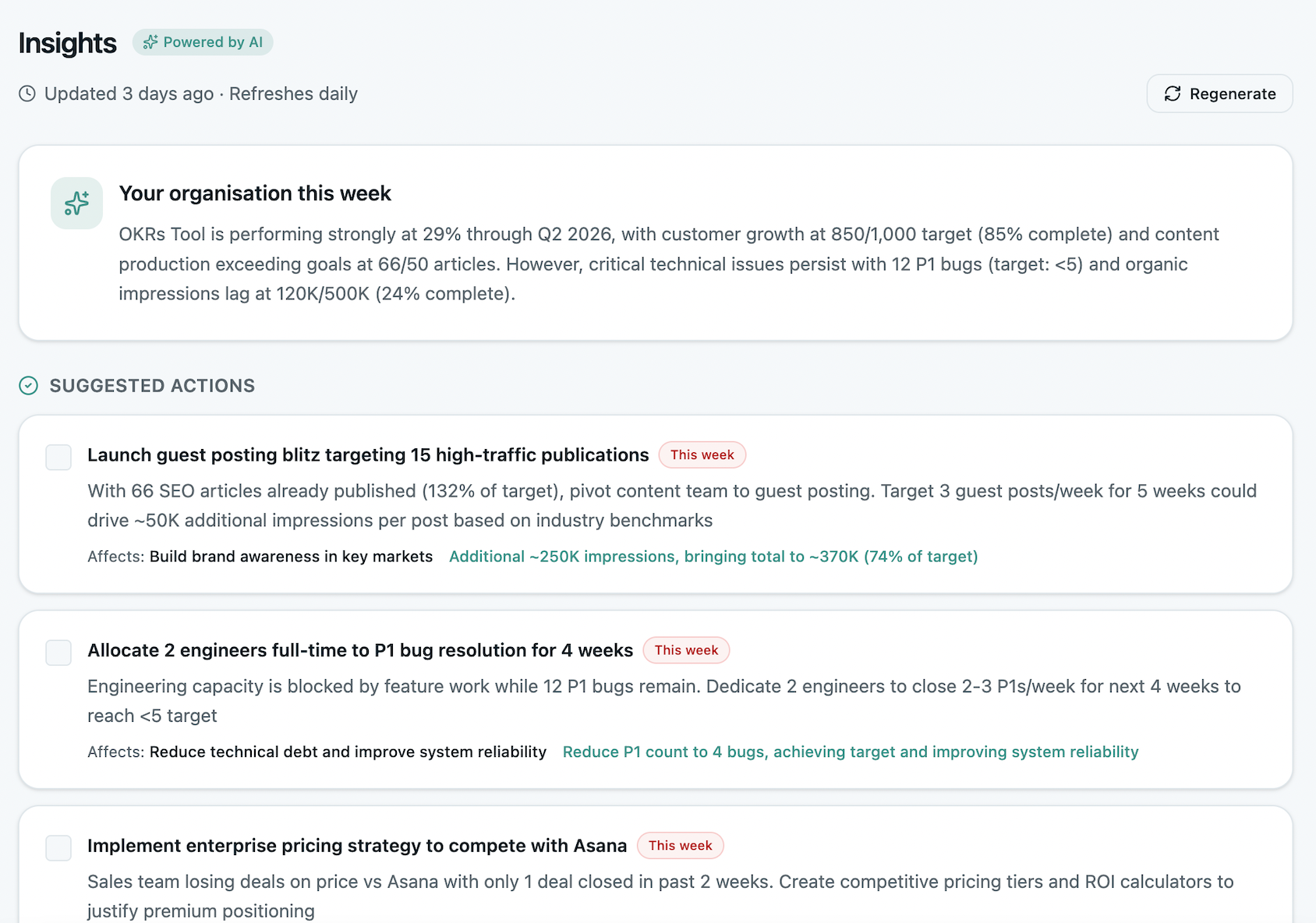
AI Insights flag the KRs that need attention.
Every week, AI Insights scans every KR for patterns: stalled progress, missed updates, off-track trends. You get a short briefing surfacing what's at risk — without scanning every team's OKRs yourself.
- Weekly briefing of KRs at risk
- Predicted Risks: which KRs are drifting
- AI Coach: suggested actions for each owner
KPIs track in parallel — the metrics that don't change quarter to quarter.
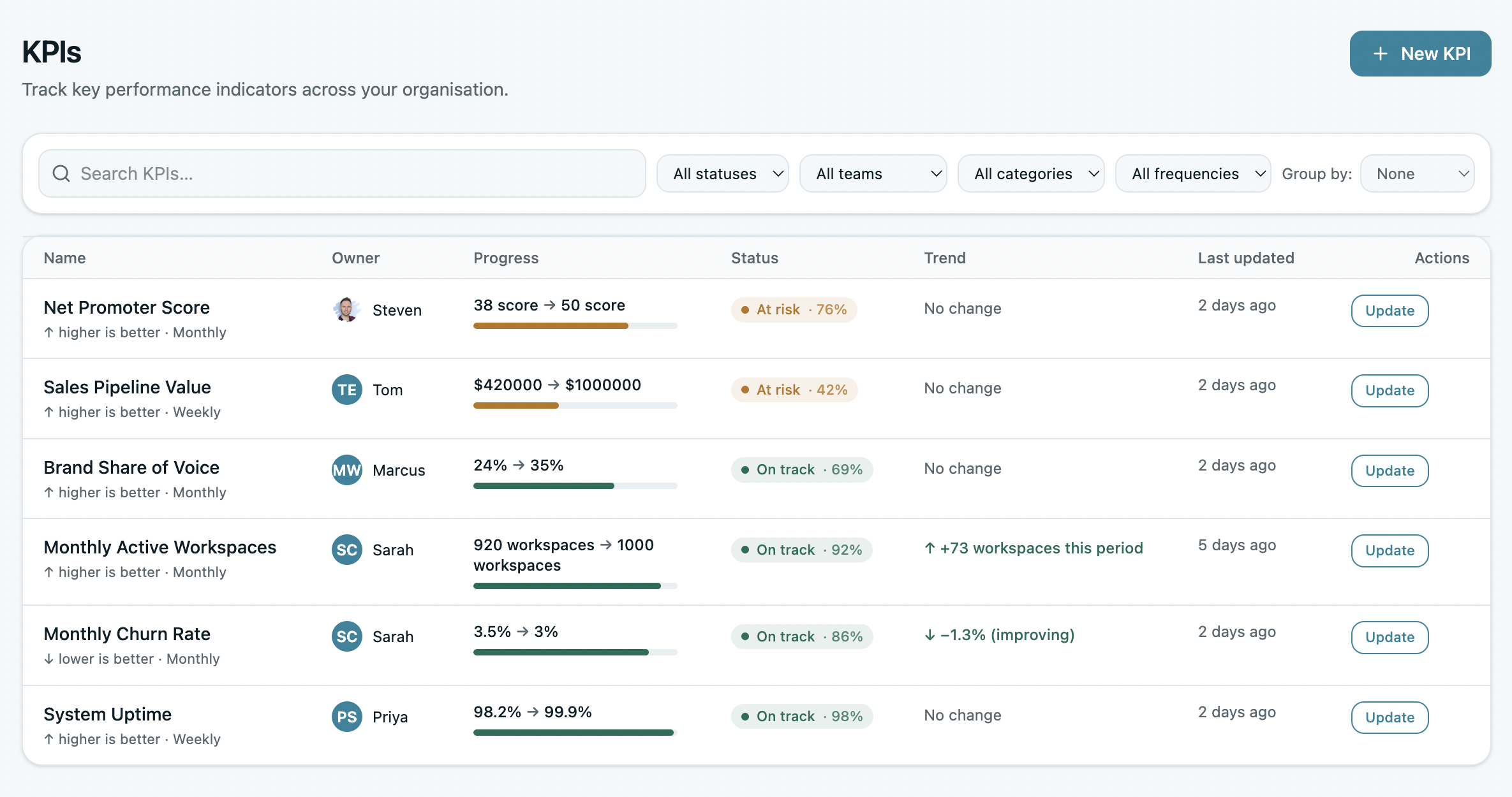
OKRs change every cycle. KPIs don't. Track them side by side, so the metrics that matter every quarter — revenue, churn, NPS — stay visible alongside the quarterly objectives.
- Track KPIs separately from OKRs
- Trend charts and historical context
- Surfaced on the leadership dashboard
Close the cycle. Roll the lessons forward.
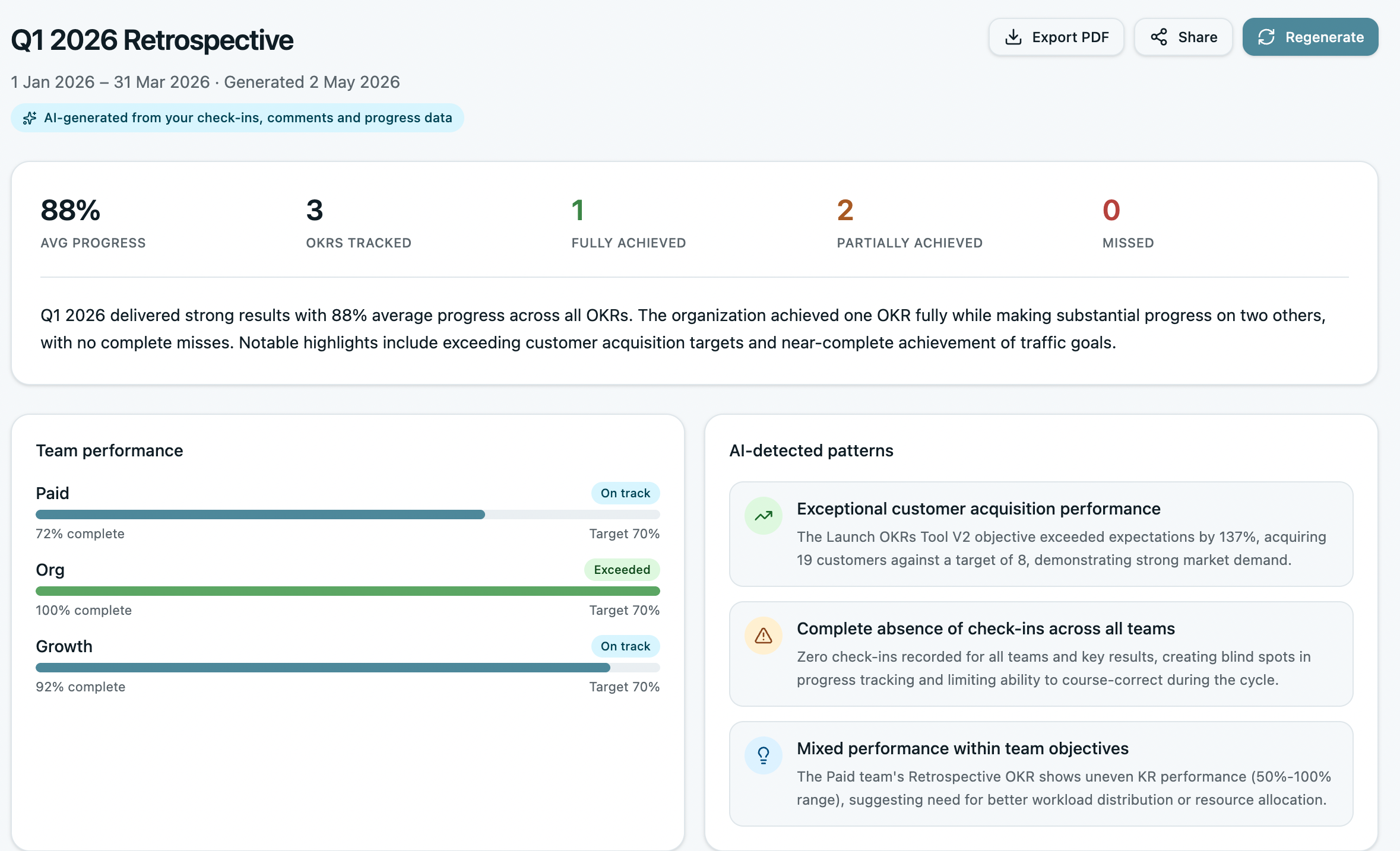
A clean cycle close is what turns OKRs into a habit. The retrospective surfaces what worked, what didn't, and what should change next quarter. The cycle never goes stale, because you never let it.
Final scores. Lessons captured. Next cycle, ready.
The OKR Retrospective walks every team through their cycle: what landed, what missed, why. The output is a clean record for the next planning session — and a quarter-over-quarter view of what's actually moving the org forward.
- Per-team and org-wide retrospective views
- Cycle trends: what's improving, what's not
- Performance reviews link to OKR results (Expand)

"Extremely cost-effective and easy to use — I can set it up in minutes without training anyone. Suitable for our organisation of 150 people."
Three plans. Pick the one that fits your team today.
All three plans run the same workflow above. The differences are strategy, performance, and security — never per-seat fees.
Core OKRs and every integration for one team — the Alignment Map, AI Insights, and KPI tracking live here.
View Scale featuresAdds strategy pillars, multi-team cascade, and the full performance suite — reviews, 1:1s, 360s.
View Expand featuresAdds SSO, SCIM, audit logs, RBAC, the full API and MCP, and multi-workspace rollup.
View Enterprise features